Safe Mode is a best way to recover from any unknown crashing application, maybe some virus infected your system and now you are stranded with the newly installed system being in the hands of some unknown filthy malware, well do not panic because it’s a common scenario and anyone with even a deepest technical knowledge can become prey of this thing, so to sought out this issue windows usually gave use the Safe Mode option that disables everything hence making it easier for you to uninstall your bad or corrupted stuff and making it live again in a healthy environment.
So after you have installed Windows 10, make sure to check out our guide on creating a bootable USB drive using 2 awesome tools. In case you wanna boot in Safe there are two simple methods that can help you do so in Windows 10 off course.
Booting Windows 10 in Safe Mode using Recovery Option
The recovery feature is included in Windows 10 that enabled to explore many more things apart from getting your system into Safe Mode, so lets see how.
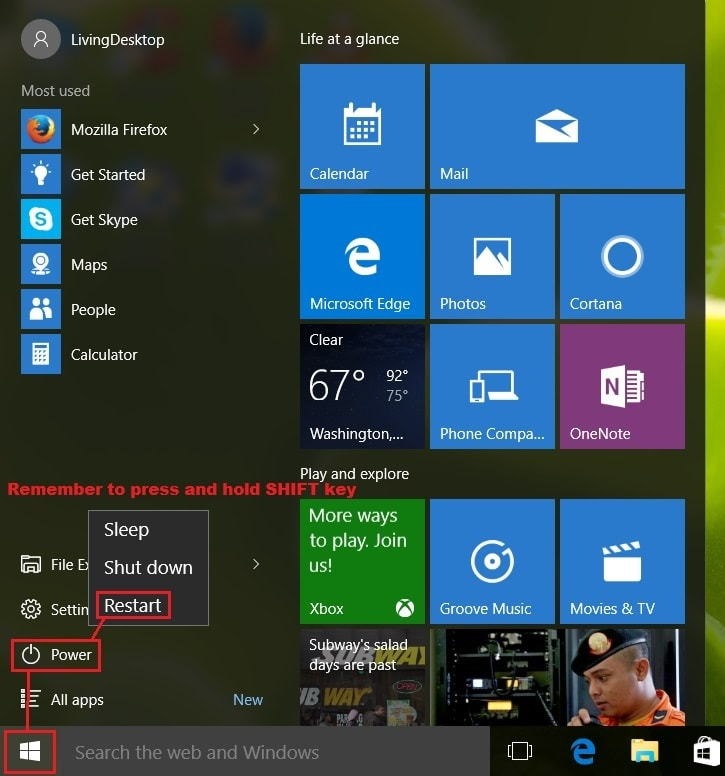
- Press the Windows Icon and then Power option.
- Now you need to press and hold
Shift Key & then press the Restart Option. - Now your computer will get the Recovery options menu.
- Press the Troubleshoot option. Under that you will see many more options.
- Choose Advanced Options.
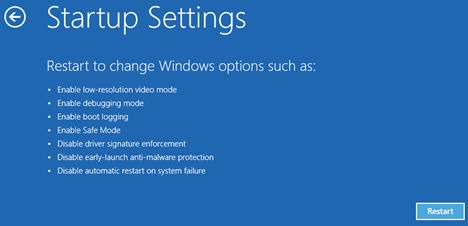
- Now when you get inside the Advanced Options menu, you need to select the Startup Settings option.
- Now you will see many options, just press the Restart option to boot windows with all these options to choose from.
- Now your system will boost, you need to press the Key to boot the option you like, so if you wanna boot your windows in safe mode, press the 4 key.


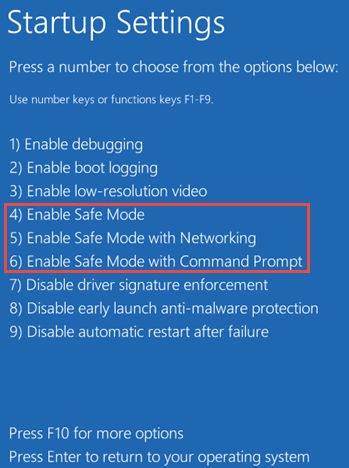
That’s it, now your Windows 10 will boot in Safe Mode, and you can do whatever you would like to do in the Safe Mode.
Booting Windows in Safe Mode using the msconfig.exe Option
This is another way of booting in Safe Mode on Windows 10 using the System Configuration Tool available on every Windows OS.
- Open the System Configuration Tool by typing msconfig.exe in Run dialog or you are also type System Configuration in the search bar.
- Now under the Boot Options, click that Safe Boot option and press Apply and OK.
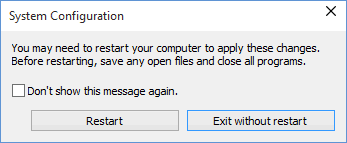
- That’s it, now you will get a Popup dialog asking you to either Restart now or Exit without restart to restart later in Safe Mode.

So these were the two easy ways that can help you in getting your Windows 10 in Safe Mode. You get try both the ways whichever gets easier for you could be used for future purpose. Have fun and do comment if you face any problem.